- First, ensure you had used a correct/valid address for the respective blockchain network prior to initially clicking “Submit withdraw” when withdrawing (see this guide about “How to withdraw from Faucet Crypto”). If YES, proceed to #2 below.
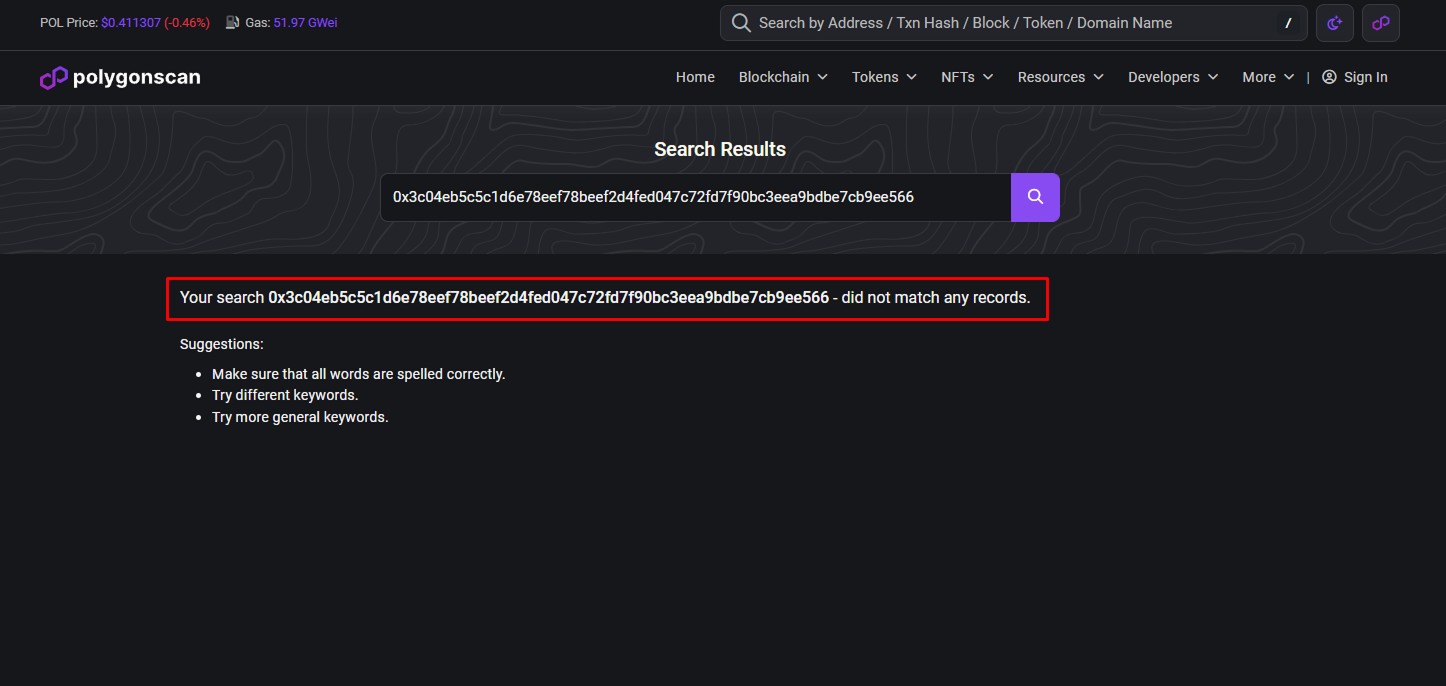
- Scroll down the left-side menu to the PROFILE section, and click on the Withdraw option/page to open it up, then click on “Open” where it says “Withdrawal History” to show your full Withdrawal History
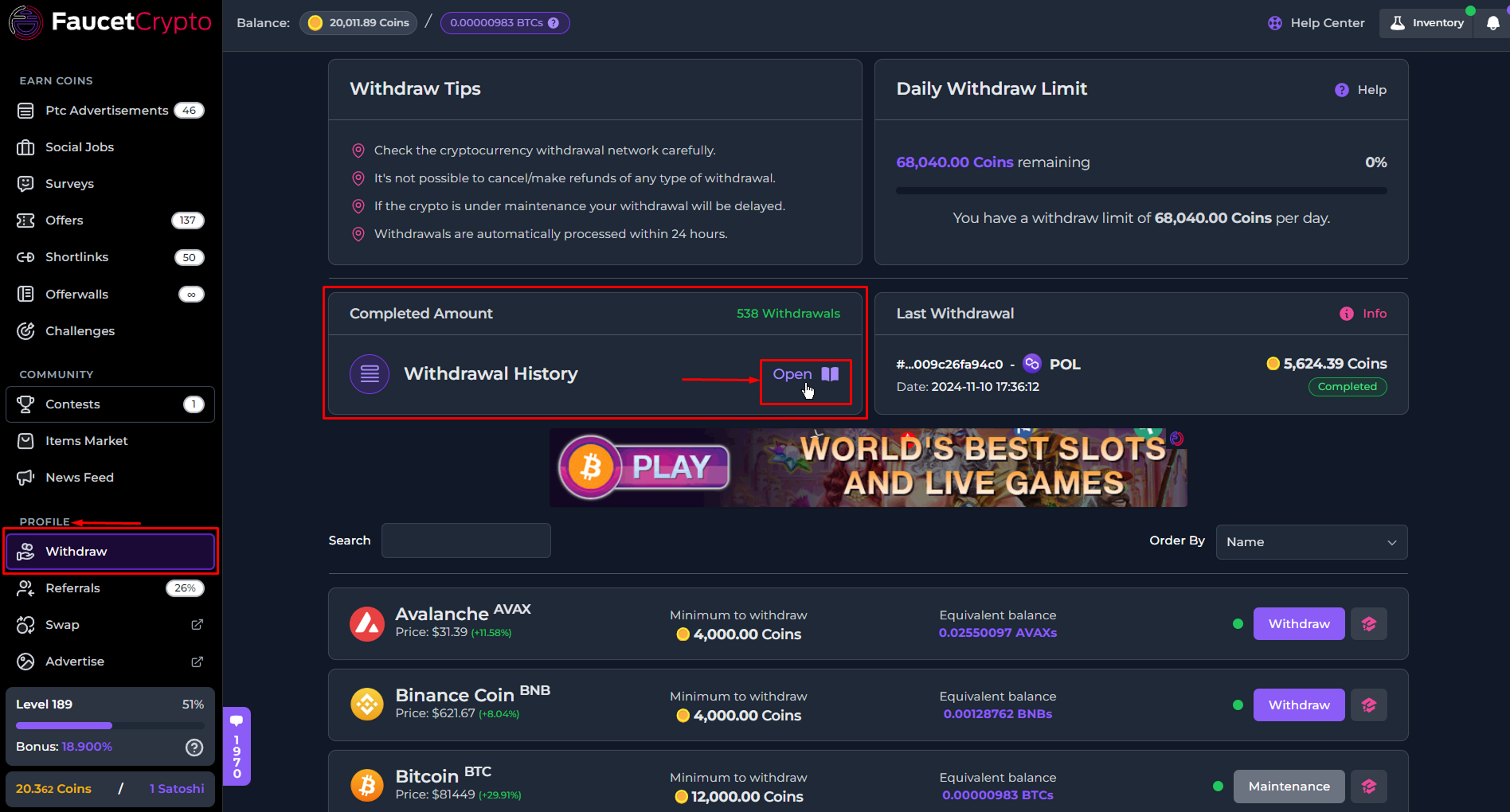
- Once your full Withdrawal History shows, click on the specific withdrawal you have an issue with to bring up more details about it ie. Transaction flow from “Submission”, “Processing” to “Completed” (including date & time stamps); Amount of Coins withdrawn and the equivalent crypto amount to be received; Your withdrawal address; and most importantly, the transaction hash/ID (abbreviated as TxID)
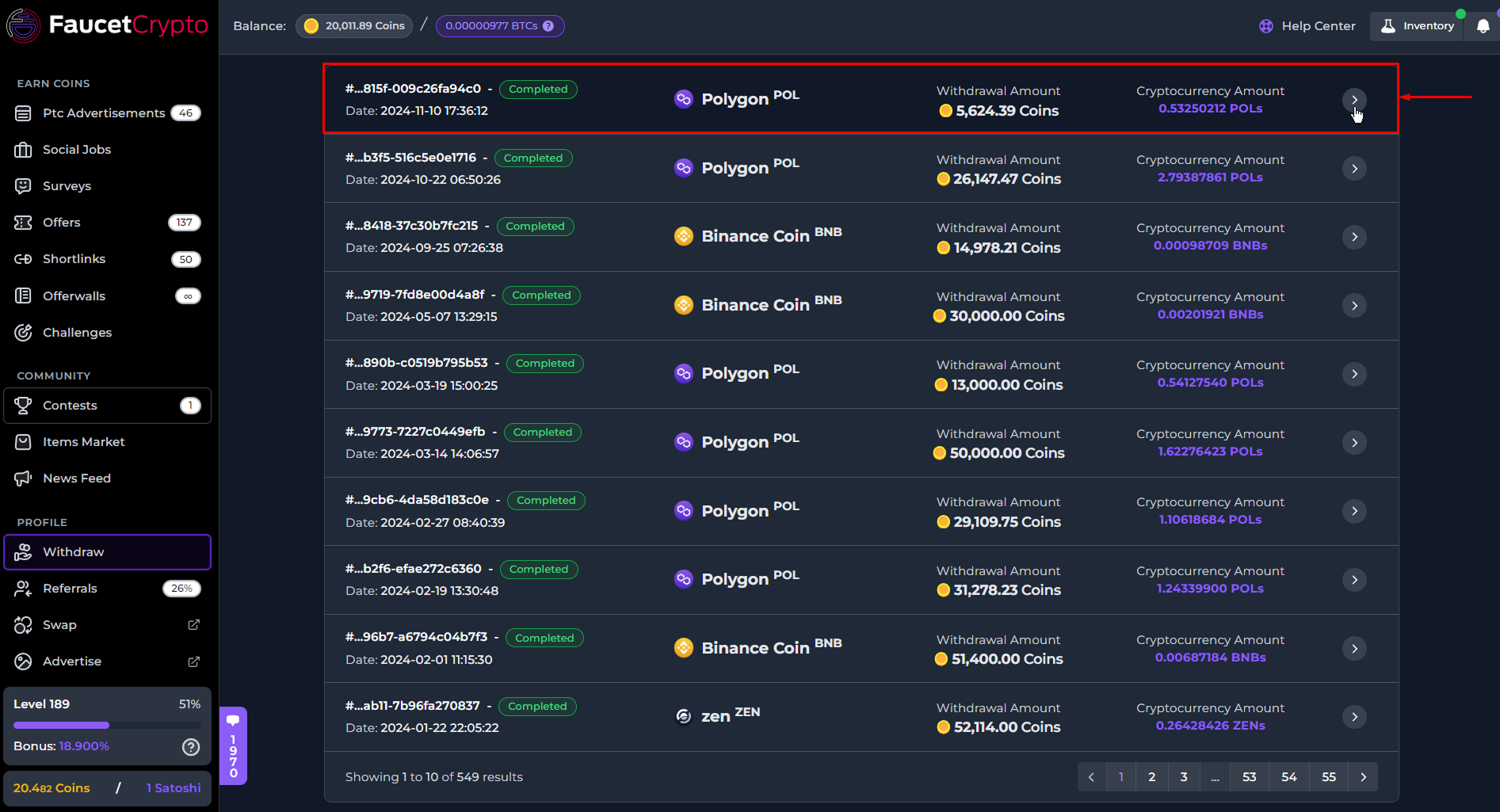
- The transaction hash/ID (TxID) is the single unique identifier to verify that your withdrawal was sent, and it is what you will use in tracking your transaction on a Block Explorer to confirm with 100% certainty
- That said, at the Withdrawal Details Modal, either click the “copy” icon to copy the TxID and manually input/paste it into a related Block Explorer for the associated crypto and search OR simply click the “Link” icon to automatically open it in it’s related Block Explorer and track the transaction.
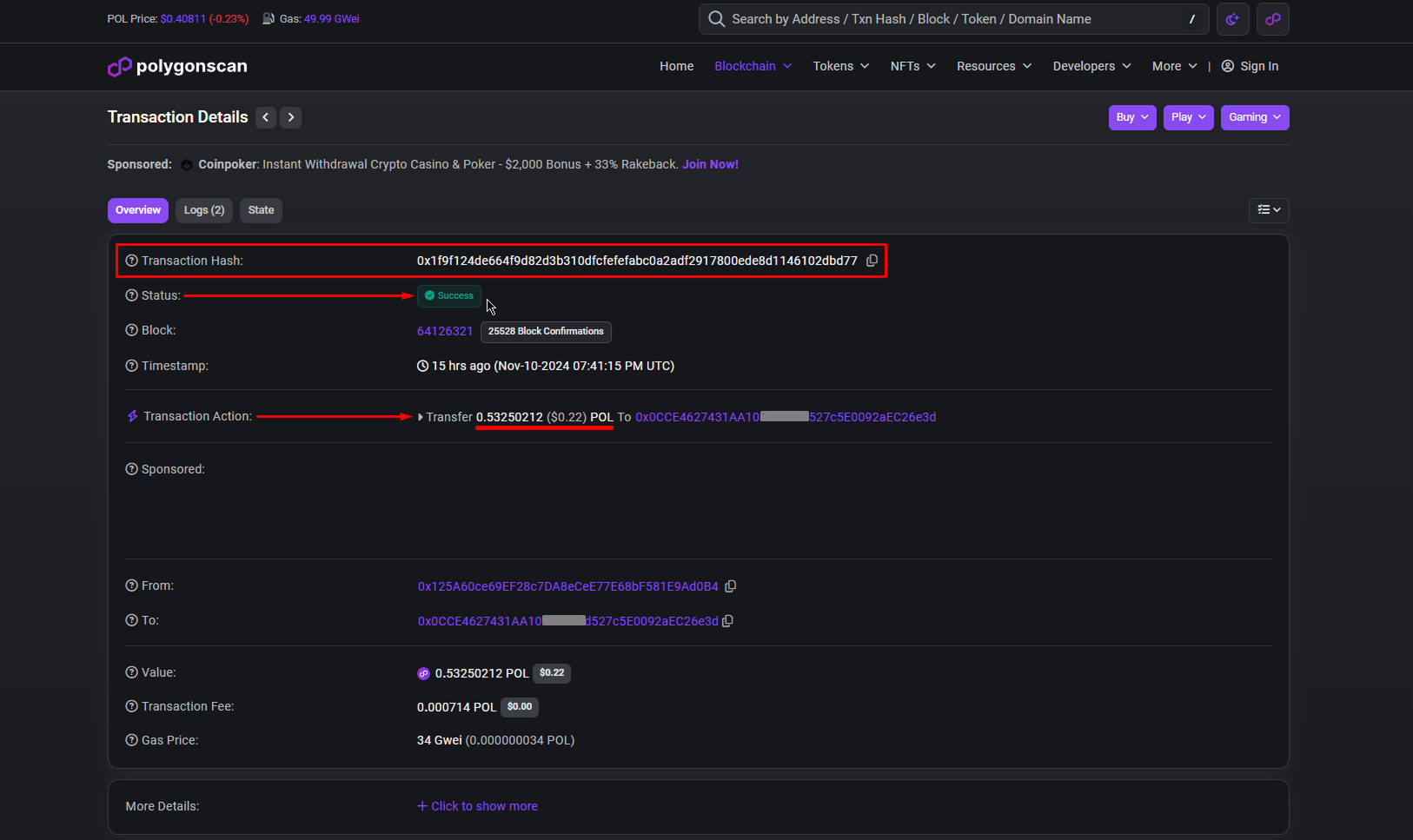
- Once it opens, generally (but using this Polygon withdrawal as an example on polygonscan) pay attention to a section that says “Status” (and/or “No. of Confirmations” for some network block explorers). Being marked as ‘Success’, ‘Confirmed’, ‘Successful’ or anything similar… with 1 or more No. of Confirmations is 100% verifiable assurance that the transaction was accurately sent. You can also see your address, amount transacted and other details pertaining to the whole withdrawal.
- your wallet app is not pulling up updated information from the blockchain correctly; OR
- your wallet app requires more No. of Confirmations on the blockchain before it can show the updated coins/balance (in which case you should just give it time).
- In any case, if the block explorer shows the withdrawal status as Success, Confirmed, Successful or anything similar, and you need further help, please contact your wallet’s app Customer Support team with your address and TxID, and they’ll be the ones to address your concerns further.
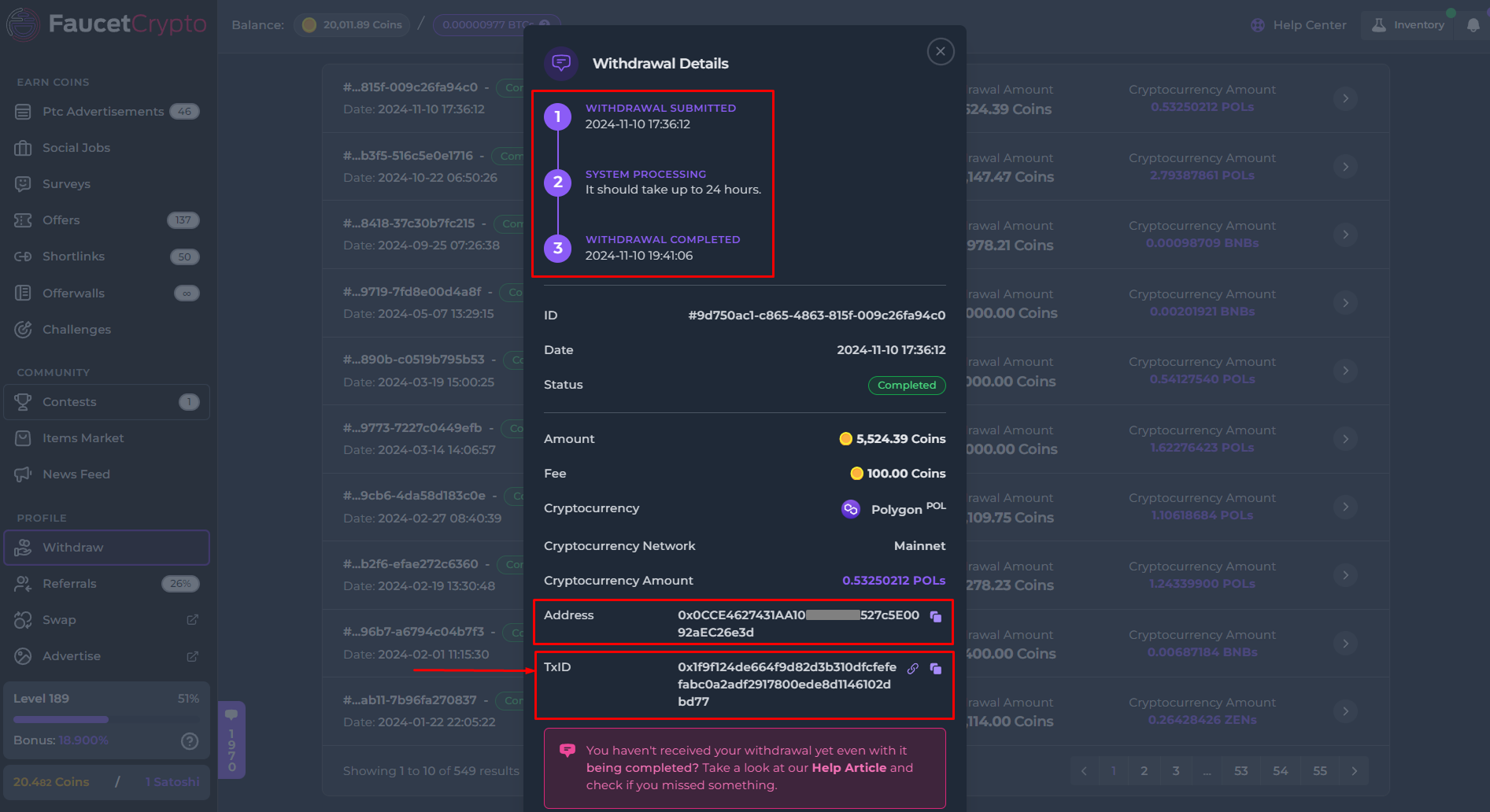
…but, mine says “Invalid TXN” or “Transaction not found” in a block explorer! What should I do?
Hey, don’t panic if you try tracking the transaction on a block explorer as outlined through the steps above, but you end up with a screen on the block explorer saying “Invalid Txn” or “Transaction not found” or something similar like in the image below: