> ## Documentation Index
> Fetch the complete documentation index at: https://faucetcrypto.mintlify.site/llms.txt
> Use this file to discover all available pages before exploring further.
# How to enable/disable 2FA Security?
Two-Factor Authentication (2FA) security adds an extra layer of security to your account. Whenever you want to log into your account on a new device, you'll be asked to provide a TOTP code from your authentication app.
***
## How to enable Two-Factor Authentication (2FA)
To enable 2FA, please carefully follow the steps below:
1. **Login** to your **Account**
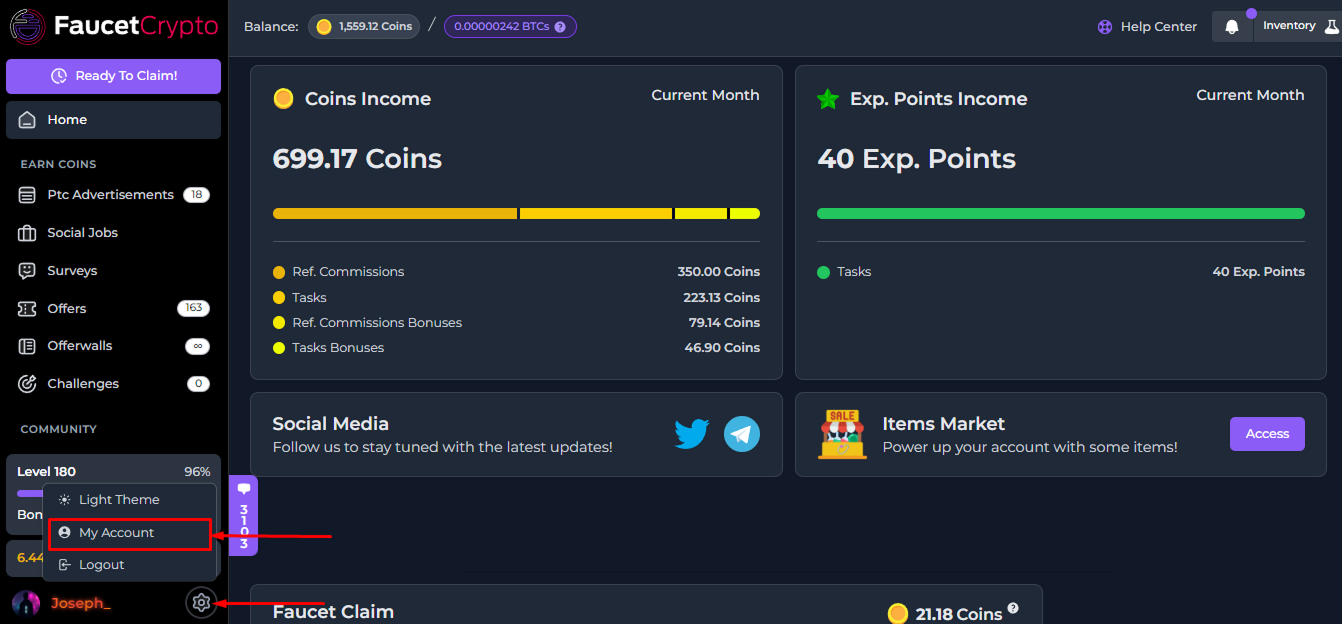
2. Click on the **Settings** icon at the bottom of the side menu and select "***My Account***" to access your Profile page
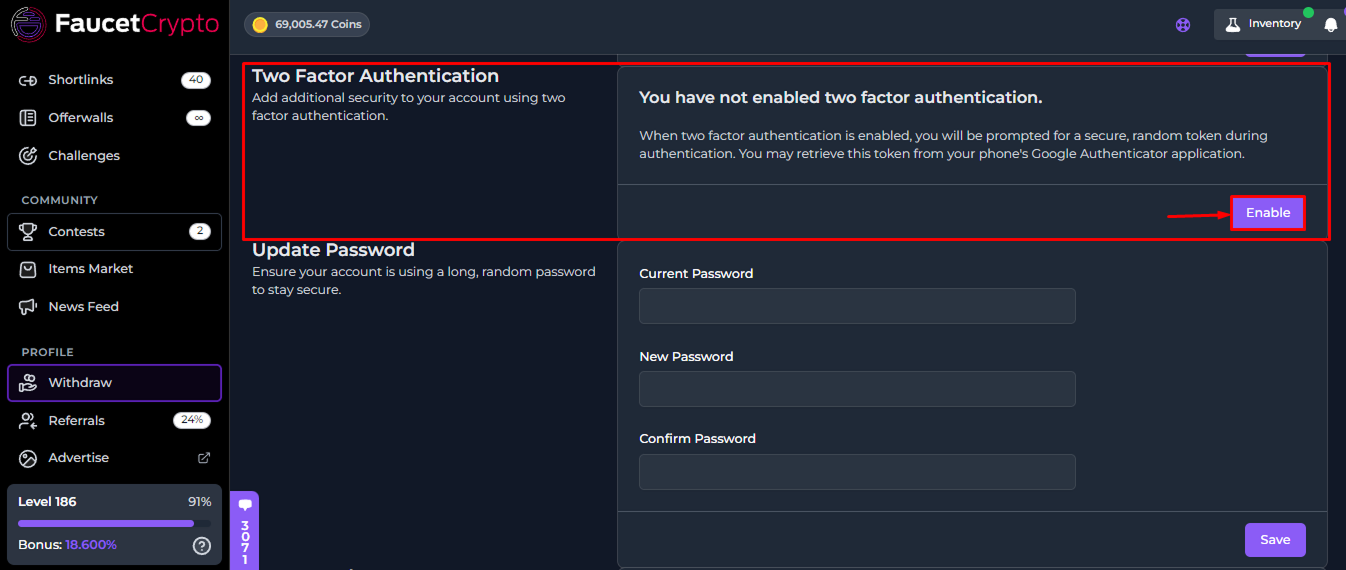
3. Scroll down till you find the **Two-Factor Authentication** box. Read the information carefully, then click on "***Enable***"
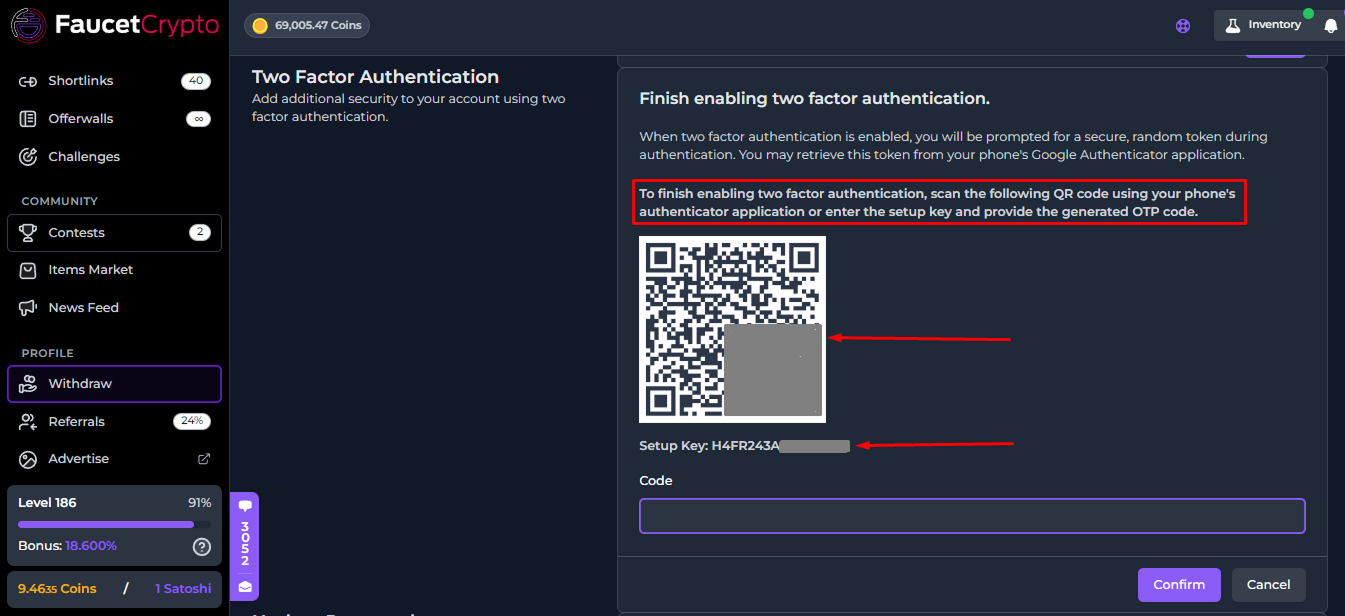
4. An expanded window will appear. Read the instruction clearly and carefully. Proceed to **scan the QR code** shown to you using your **phone authentication app** (Google Authenticator or Authy) OR **copy the Setup Key** shown and enter it manually in your authentication app
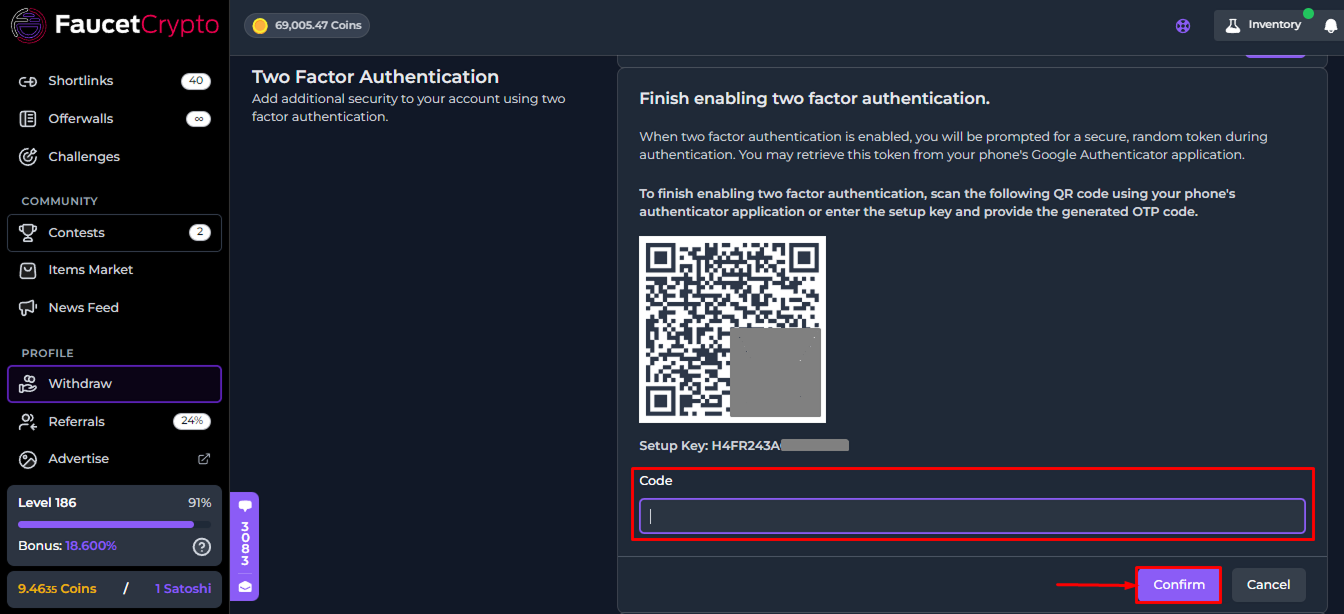
5. Once you've scanned the QR code (or entered the Setup Key manually), your authentication app will **generate a 6 digit code** that repeatedly expires and refreshes within a short time frame. **Copy the 6 digit code** from your authentication app and paste into the assigned box. Then click "***Confirm***"
6. **Congratulations**! You've **successfully set up 2FA configuration** for your account. Whenever you want to log into your account on a new device, you'll be asked to provide a **TOTP code** from your authentication app.
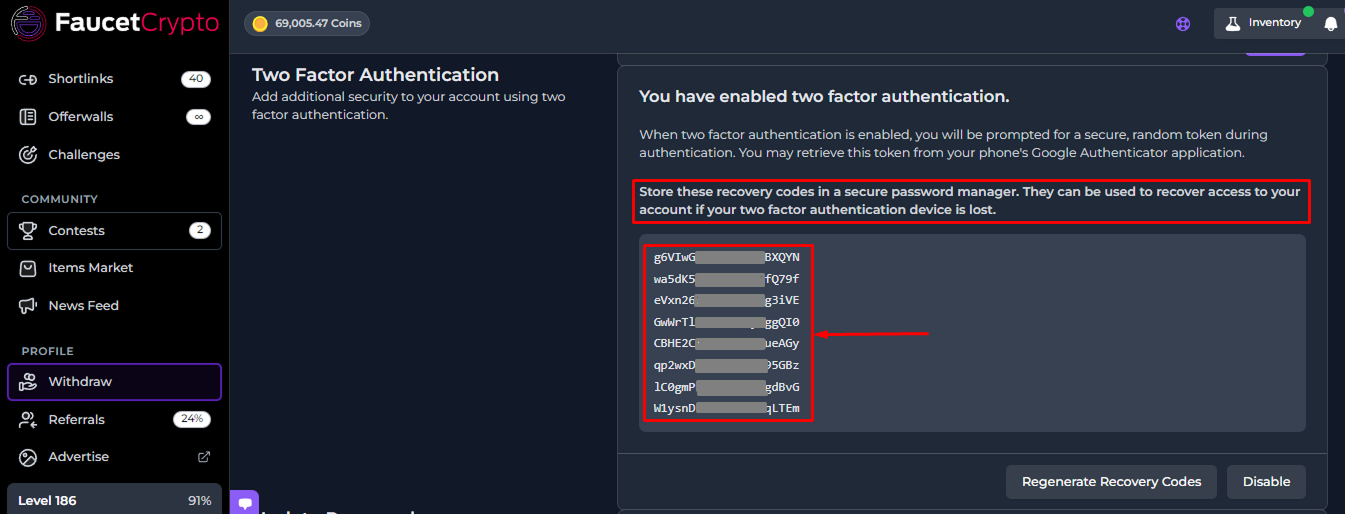
7. Upon successfully setting up 2FA configuration for your account, you'll be presented with a set of **Recovery codes** (as shown in the image below). **Store the Recovery codes in a secure place**. They can be used to recover access to your account if your two-factor authentication device is lost
***
## How to disable Two-Factor Authentication (2FA)
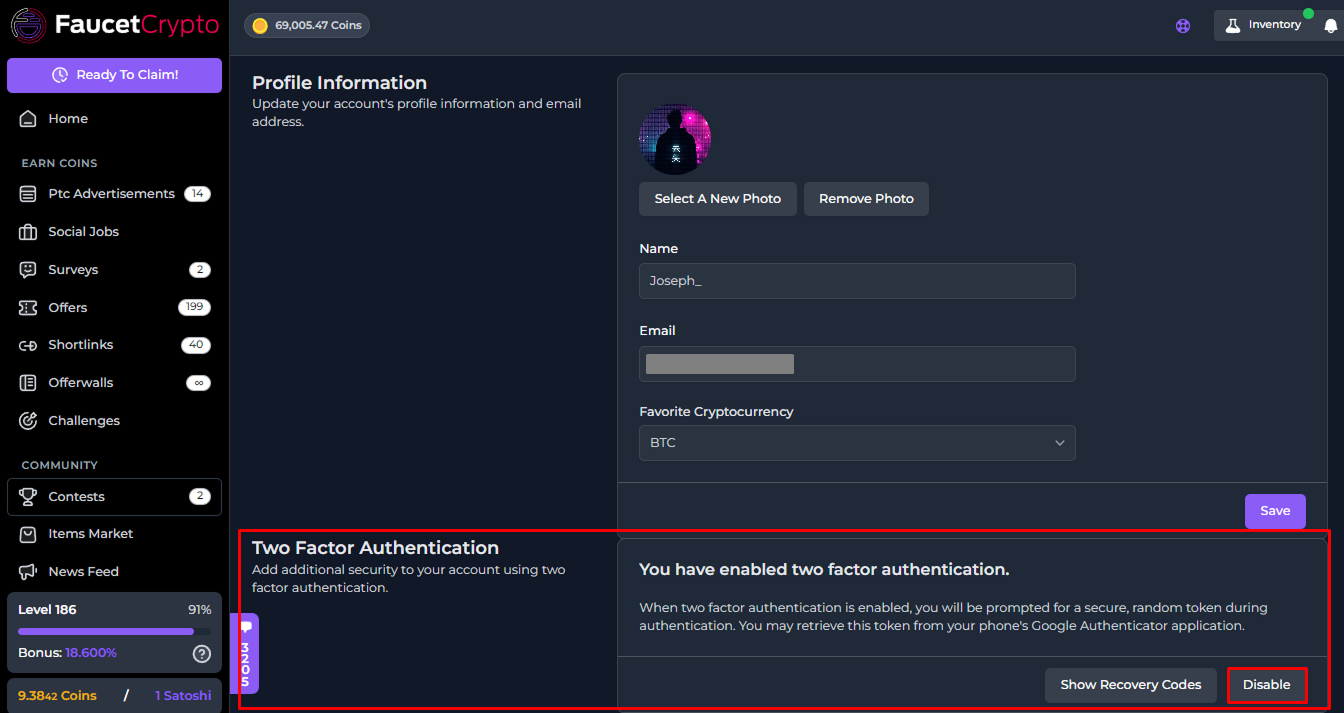
If you determine that you do not need 2FA, and you want to disable it, simply go to the **Settings** page, and click on the "***Disable***" button at the Two Factor Authentication box
**Tip:** *Make sure to always use a strong password that is not reused on any other websites or services and practice proper security/password management*
This documentation is built and hosted on [Mintlify](https://mintlify.com), a developer documentation platform.